
Prepare the playlist before you save
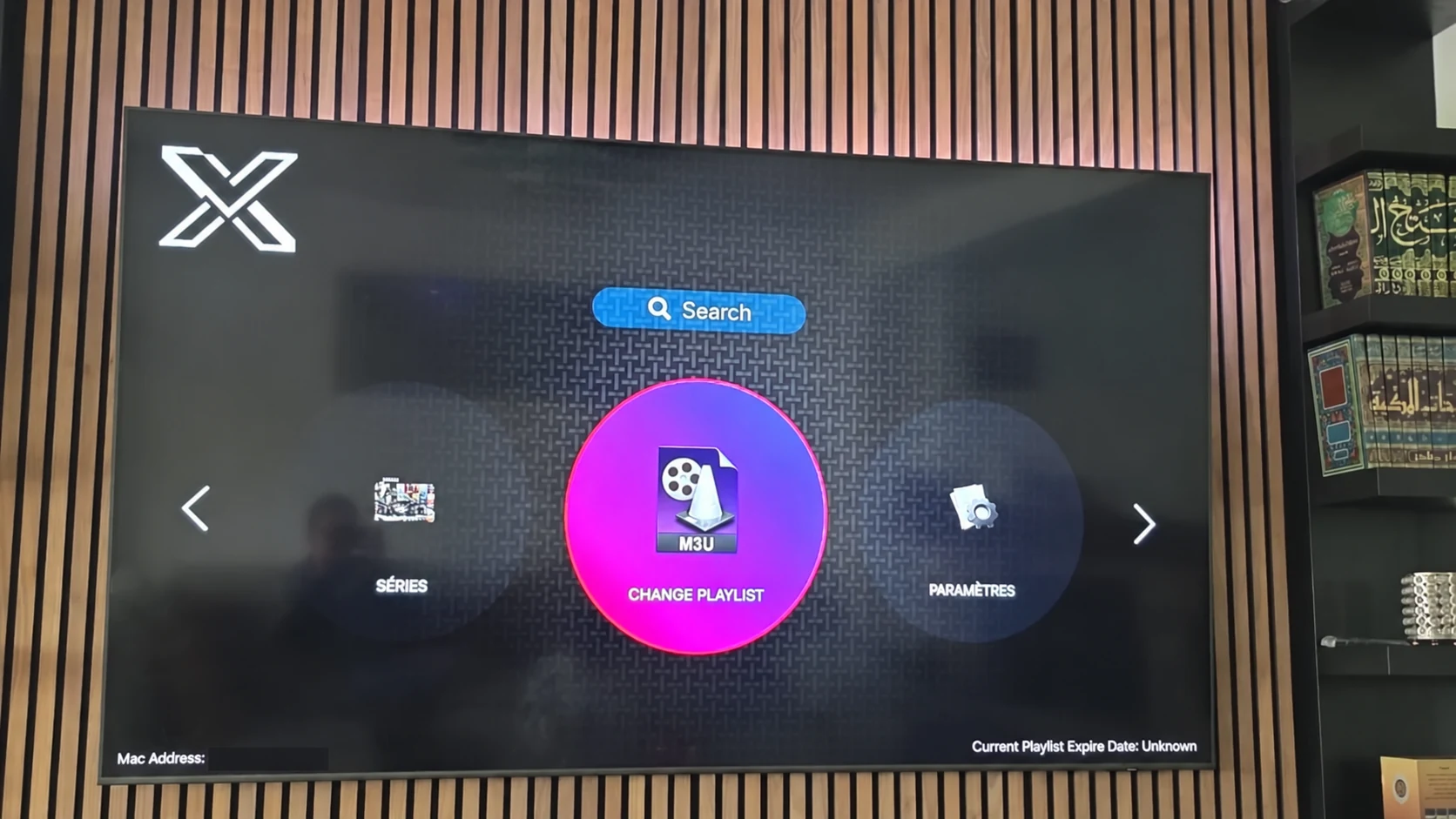
The photographed XOTT interface includes a playlist-change control. Use the account or playlist area shown by your installed version and note the fields it requests. The exact labels can differ across builds, so match the method rather than searching for a single universal menu name.
Ask support for the compatible account values. A playlist URL and a server login with credentials are different input formats; use only the format accepted by the installed application.
A careful add-playlist sequence
- Confirm the device and exact XOTT app identity.
- Open the playlist or account settings.
- Record the required connection method.
- Request the matching account details through private support.
- Enter the supplied values without accidental spaces.
- Save once and allow live TV, guide and on-demand data to load where available.
- Test several sources and record the result.
Separate account loading from playback
A playlist can load successfully even when one stream does not play. Test another category and another supported quality before changing the login. If all categories are missing, review access status, filters and refresh behavior instead.
The programme guide is another separate check. A missing schedule may involve source mapping or refresh while the live channel still plays. Record the symptom precisely so a guide issue does not get treated as a password problem.
Protect the original setup when changing accounts
Keep a private record of the login method and useful settings before replacing a working playlist. Note which account is active and what the new one is intended to change. Preserve credentials privately and keep device identifiers out of public photos.
When the new account is saved, test the same source used before the change. A clear comparison helps support understand whether the difference belongs to account access, player preferences or a particular stream.
Questions about this XOTT guide
Is XOTT the same name as X OTT?
This website uses XOTT as its brand and includes X OTT as a common spaced form. Always check the installed application identity rather than relying only on a similar name.
Does installing XOTT Player include a subscription?
Installation provides the player. A compatible service account supplies access to its available playlist and streams.
Where can I download the XOTT app?
Check the legitimate source available to your device. The photographed television listing is a Smart TV example; other platform builds must be confirmed separately.
How do I request a one-day trial?
After installing your player, WhatsApp support with your device and app name. Support confirms a matching account and current trial availability.
Can I use the app on two screens at the same time?
The published subscription plans include one customer connection. Installing a player on another device does not add another simultaneous connection.
Is an 8K player code a XOTT code?
No. A code in the supplied list belongs to the named separate player. Confirm a specific XOTT download source before installing it.
Your next step
After installing your player, WhatsApp us for a one-day trial. Include the device model, the exact app name and the account or playlist screen you see. Support will confirm a matching login method before you enter any account details.