
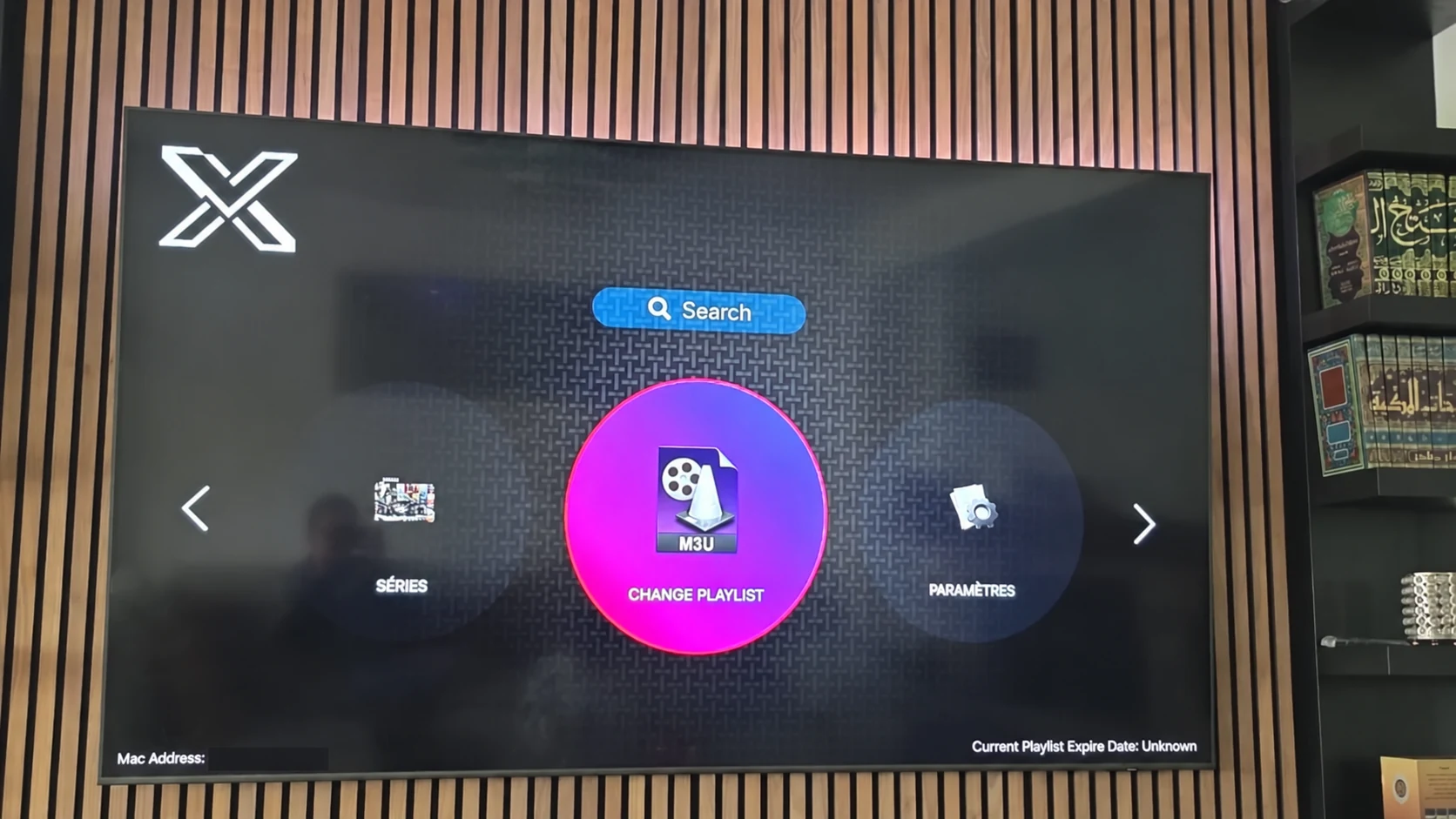
Start with the application on your screen
XOTT Player brings a playlist and the playback interface together on a compatible device. This guide begins with the photographed television application, then explains how to prepare an account and test a setup. The X OTT spelling is a spaced form used for the same website brand; use the exact installed app identity when choosing software.
What the XOTT application does
XOTT Player is the application on your screen. A subscription is the account that supplies the playlist and available streams. The player can show navigation, categories and viewing controls after a compatible account is connected. Installing an application does not by itself purchase a subscription or unlock a catalogue.
The photographed XOTT interface includes a playlist-change option and a settings area. Treat those images as a reference for the illustrated version. Your television, app build or store region can present different labels. Start with the exact app and device in front of you, rather than assuming every guide describes the same software.
Choose the installation route for your actual device
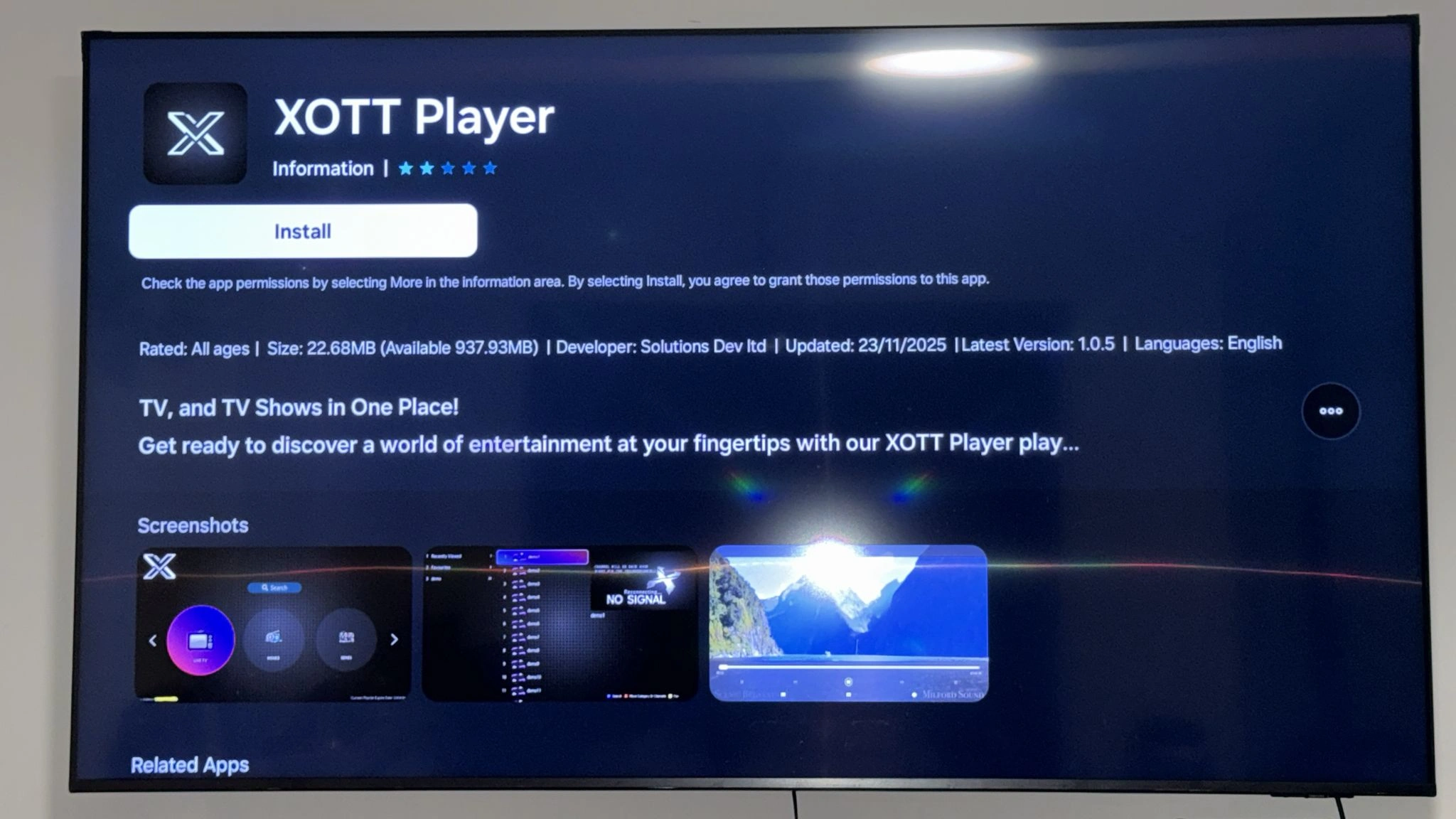
On a supported Smart TV, search the television’s own app store for XOTT Player and compare the app identity with the listing shown in this guide. Use the listing available on your device to read current publisher, permissions and installation information. A photograph of one television’s listing does not establish availability for all countries or model years.
Android, Fire TV, Apple devices and Windows use different application formats and distribution routes. Do not assume a television app also has a public Android APK, an iPhone build or a Windows installer. If XOTT is unavailable on your platform, ask support about a compatible alternative player and its supported login format.
Understand the account screen before adding a playlist
Open the account or playlist area and note which fields it actually requests. A playlist URL, a server URL with username and password, and a device-linked activation process are different connection methods. Use only the method that your installed player offers and that support confirms for your account.
- Record the device model and app version, where shown.
- Open the playlist or provider settings.
- Request the matching account details through private support.
- Enter the supplied values carefully, without accidental spaces.
- Save once and allow the account data to load.
- Test live TV, programme-guide data and one on-demand item where available.
XOTT Player screens: playlist control and app listing
Test the account before choosing a longer term
A useful test checks the parts you actually want to use. Open several live sources, compare one lower-bitrate feed, review the programme guide and try an on-demand item where the account includes one. Record whether the failure affects everything, one category, one channel or only a particular file.
The published subscription totals are $9.59 for one month, $23.99 for three months, $39.99 for six months and $54.99 for twelve months. These are subscription terms with one customer connection, separate from any fee or activation condition imposed by a third-party player. Confirm the installed application and account combination during the one-day trial.
Resolution, programme guides and catalogue availability
Picture quality comes from the individual stream and the playback chain. The source, codec, player build, television decoder, display and network all matter. An app name does not convert a lower-resolution source into 4K or guarantee that every title uses the same quality.
Programme-guide data and replay also depend on the account and source. An empty guide can be a mapping or refresh issue even when the channel plays normally. A missing category can reflect account access, filters or a refresh problem. Record the symptom before changing an unrelated player setting.
Troubleshoot one variable at a time
For a login failure, first confirm the account is active and the connection method matches the screen. For a playlist that loads but does not play, test more than one source and compare another supported quality. For intermittent pauses, compare the same item over a steadier local connection before changing the account itself.
Keep a small note with the time, app version, device model, selected source and exact symptom. This makes support more useful than a message saying only that the app is not working. Avoid repeatedly uninstalling the player, changing every setting or sharing account credentials in public.
App identity and download codes
No XOTT-specific APK, Windows executable or Downloader code is published in the supplied Team 8K download list. That list contains separate named 8K players. Their codes identify those apps and should not be presented as XOTT downloads.
The download hub explains the routes by platform and links to legitimate source checks. If support supplies a current installer or code, confirm the destination, publisher and device format before using it. An installation code and a subscription login have different jobs.
Questions about this XOTT guide
Is XOTT the same name as X OTT?
This website uses XOTT as its brand and includes X OTT as a common spaced form. Always check the installed application identity rather than relying only on a similar name.
Does installing XOTT Player include a subscription?
Installation provides the player. A compatible service account supplies access to its available playlist and streams.
Where can I download the XOTT app?
Check the legitimate source available to your device. The photographed television listing is a Smart TV example; other platform builds must be confirmed separately.
How do I request a one-day trial?
After installing your player, WhatsApp support with your device and app name. Support confirms a matching account and current trial availability.
Can I use the app on two screens at the same time?
The published subscription plans include one customer connection. Installing a player on another device does not add another simultaneous connection.
Is an 8K player code a XOTT code?
No. A code in the supplied list belongs to the named separate player. Confirm a specific XOTT download source before installing it.
Your next step
After installing your player, WhatsApp us for a one-day trial. Include the device model, the exact app name and the account or playlist screen you see. Support will confirm a matching login method before you enter any account details.