
Choose an app route, not just a download button
The right XOTT app is the build available to your actual device. A television app store, an Android package, a native desktop installer and an Apple app listing use different installation systems. Begin with the device model and operating system; then identify a legitimate XOTT source for that platform.
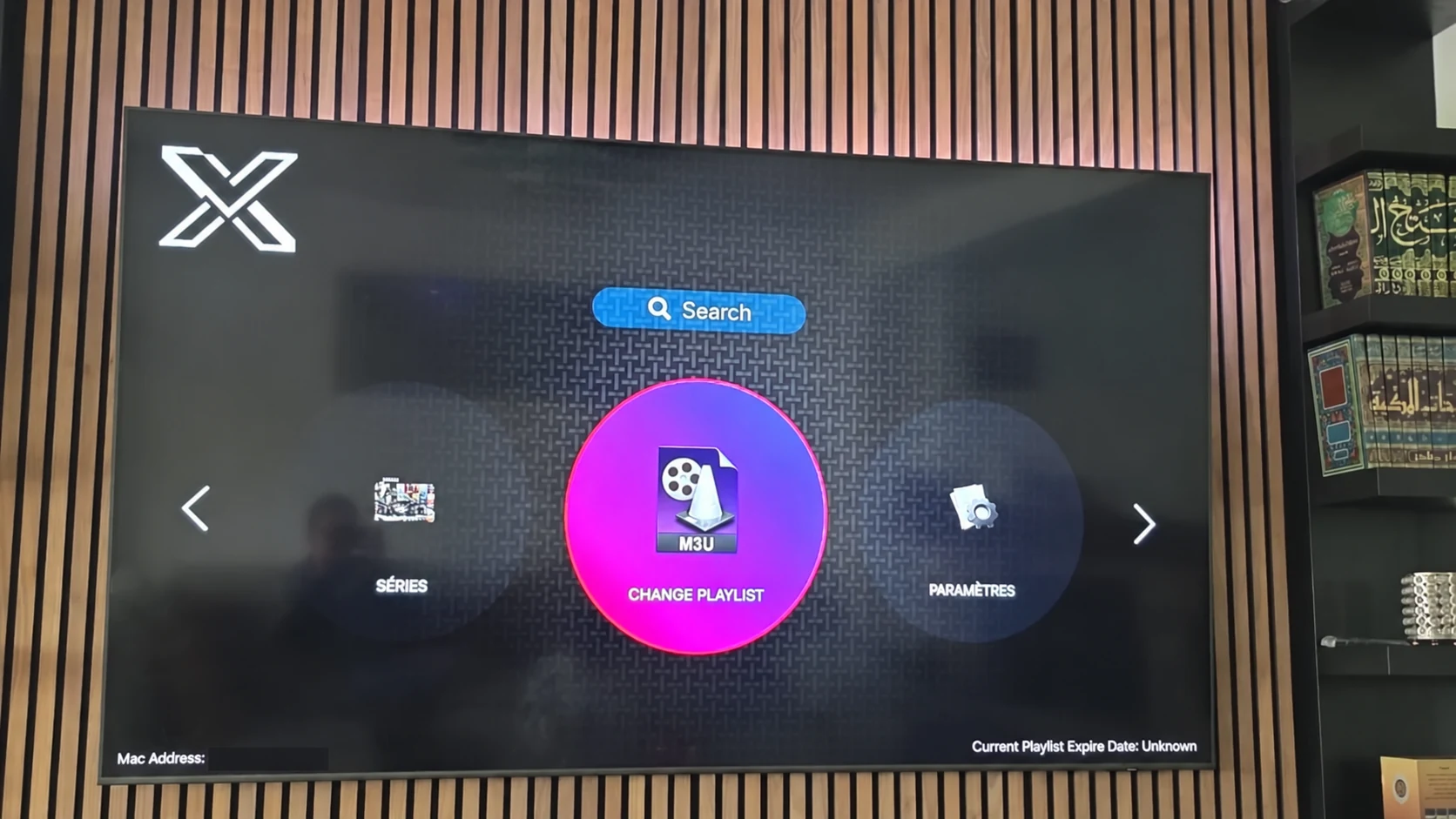
The real television listing shown here is an installation reference. It identifies an app named XOTT Player on one television, with its own listing information and install control. It is not proof of a public build for every platform, model year or store region.
Installation routes by platform
| Your platform | Start here | What to confirm |
|---|---|---|
| Samsung Tizen TV | The television’s app store | Model, store region and current XOTT listing |
| LG webOS TV | The television’s app store | A webOS-compatible listing for the actual model |
| Android TV / Google TV | A legitimate source for a compatible TV build | Package identity and remote navigation support |
| Fire TV | A source that specifically supports the Fire TV device | Fire OS support and current distribution |
| Windows | A verified native desktop source, where available | Installer format and supported Windows version |
| iPhone / iPad | A legitimate iOS app source, where available | App identity and compatibility with the account method |
Read the listing before installing
Compare the name, publisher information, permissions and supported device details in the listing available to you. Similar names can belong to different applications. A search result, another provider’s code or a screenshot of a different operating system is not a substitute for checking the installer in front of you.
If no matching XOTT build is available, ask support about a separate compatible player. Do not rename that alternative as XOTT: record its actual name so the account instructions and support conversation stay clear.
What to do after installation
Open the player once and identify its playlist or account area. Record whether it requests a URL, server credentials or a device-linked method. Request a compatible account privately, save the supplied details and allow the data to load. Test several sources before selecting a longer subscription period.
Installing software and activating account access are separate steps. A player may have its own licence conditions, while the subscription supplies the playlist and available streams. The one-day account trial begins with a matching player and connection method confirmed by support.
Questions about this XOTT guide
Is XOTT the same name as X OTT?
This website uses XOTT as its brand and includes X OTT as a common spaced form. Always check the installed application identity rather than relying only on a similar name.
Does installing XOTT Player include a subscription?
Installation provides the player. A compatible service account supplies access to its available playlist and streams.
Where can I download the XOTT app?
Check the legitimate source available to your device. The photographed television listing is a Smart TV example; other platform builds must be confirmed separately.
How do I request a one-day trial?
After installing your player, WhatsApp support with your device and app name. Support confirms a matching account and current trial availability.
Can I use the app on two screens at the same time?
The published subscription plans include one customer connection. Installing a player on another device does not add another simultaneous connection.
Is an 8K player code a XOTT code?
No. A code in the supplied list belongs to the named separate player. Confirm a specific XOTT download source before installing it.
Your next step
After installing your player, WhatsApp us for a one-day trial. Include the device model, the exact app name and the account or playlist screen you see. Support will confirm a matching login method before you enter any account details.